The 8 WeLoyal Card Types Explained: A Complete Deep-Dive
A deep-dive into all 8 WeLoyal card types: stamp, multipass, cashback, discount, reward, gift, coupon, and membership with Stripe recurring billing.
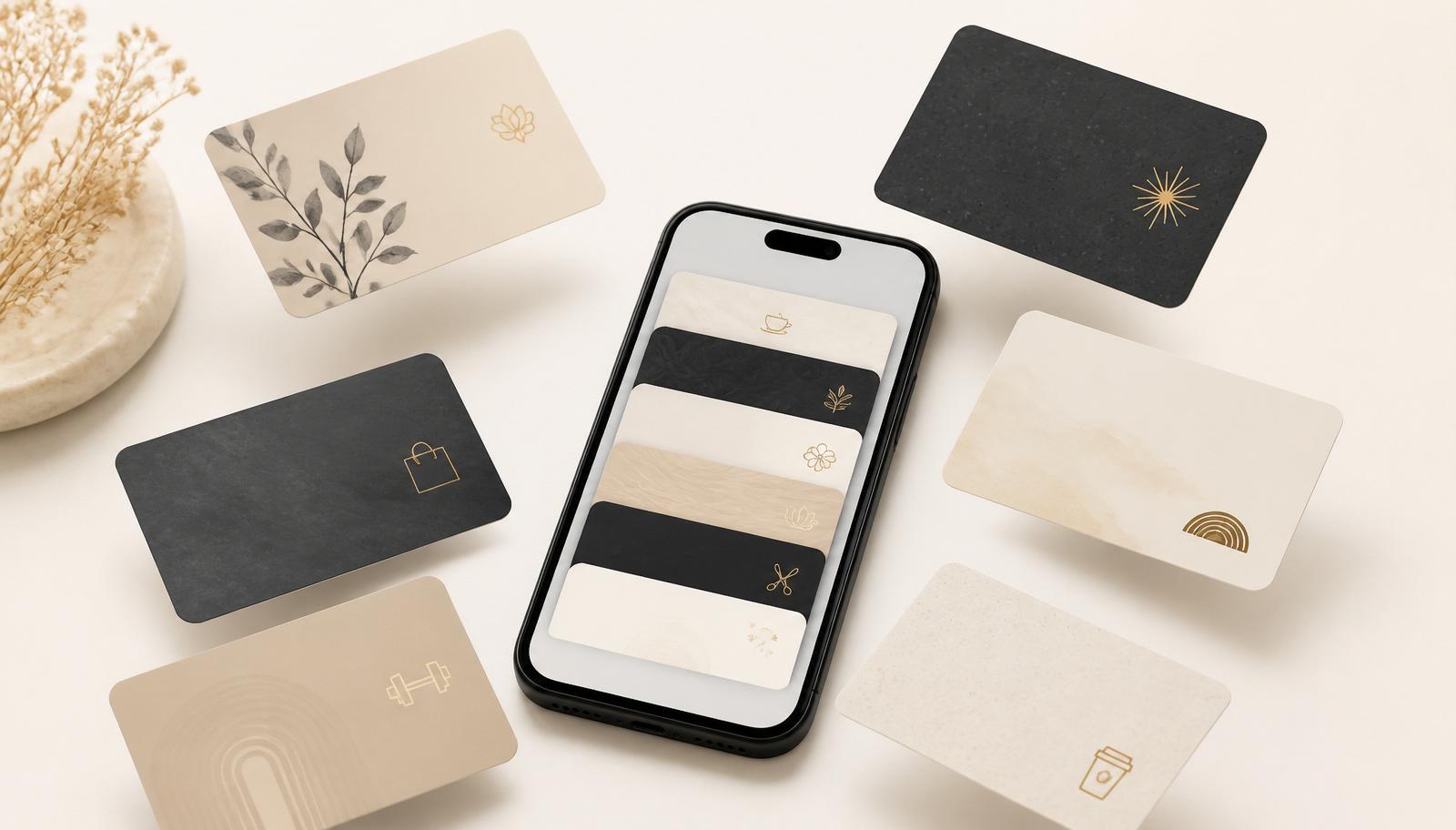
WeLoyal is a digital wallet loyalty platform (Apple Wallet, Google Wallet, and PWA) built around 8 card types. Every card shares the same simple creation flow, Card Type then Settings then Design then Information then Save and Preview, but each type has its own mechanics. Below is a genuinely deep breakdown of each one, including the questions business owners ask most often about recurring billing and Stripe.
A quick note on architecture before we start. Cards work in two modes. POS-integrated mode connects to a point-of-sale system such as Toast, so stamps and points accrue automatically at checkout. Stand-alone mode uses the free browser-based Scanner App on any phone, tablet, or computer to scan the customer's wallet card and manually add stamps, points, or visits. You do not need special hardware either way. For the full operational deep-dive, including Kiosk mode, manager permissions, and the API, read how WeLoyal runs at the counter.
If you want the wider context first, our guide on what WeLoyal is explains how the whole retention system fits together. This article focuses purely on the card types.
The 8 WeLoyal card types at a glance
WeLoyal gives local businesses eight distinct loyalty mechanics so you can match the card to the way your customers actually behave:
- Stamp card, the classic buy ten get one free.
- Multipass card, prepaid visit bundles.
- Cashback card, percentage-based points with tiers.
- Discount card, tiered percentage off at checkout.
- Reward card, the flexible generalist points card.
- Gift card, prepaid balance and true gift certificates.
- Coupon card, one-time acquisition offers.
- Membership card, subscriptions, tiers, and Stripe recurring billing.
Each one is covered in full below.
1. Stamp card: buy 10, get 1 free
Core concept: the classic punch card. A customer collects stamps toward a fixed reward, for example 10 stamps equals a free coffee. Best for cafés, car washes, salons, and quick-service restaurants, anything with a repeatable single transaction type.
How stamps are earned
You choose one earning mechanic at card creation:
- Spend: award X stamps per pound or dollar spent, for example 1 stamp per £10.
- Visit: 1 stamp per check-in, regardless of the amount.
- Stamps: manual, where your staff decides when to award a stamp (after a purchase, a specific product, or a promo). There is no automatic conditional logic like "1 stamp per 3 visits" or "only if the purchase is over £20", so any rule like that has to be applied manually by staff.
- Products: stamps tied to specific items on a receipt. This only works if you are integrated with Toast POS.
Key settings
- Happy Hours: boosted stamp accrual during a chosen time window (works only with Spend or Visit mechanics).
- Stamp life: each stamp can have its own expiry countdown independent of the others, for example stamps expire 30 days after being earned, individually rather than the whole card. Stamps that already reached reward level never expire.
- Card expiration: Unlimited, Fixed date, or Fixed term after issuing (X days after install).
- Welcome stamps: a starting stamp count on issuance (default 0).
- Birthday stamps: automatic bonus stamps plus a push notification on the customer's birthday.
- Daily accrual limit: caps stamps per day (resets at midnight) to prevent gaming.
- Card issuance limit: caps the total cards distributed (0 equals unlimited), useful for limited promos.
- Restrict to 1 check-in per day: prevents multiple same-day redemptions.
Design constraints you cannot change after activation
Stamp Count, how many stamps equal a reward, is locked once the card is activated and a customer has installed it. Change it later and existing customers' wallets still show the old number, because Apple Wallet and Google Wallet do not push template updates to already-installed cards for this specific field. If you need to change it, you must create a new card.
The words "stamps" and "rewards" are hard-coded system labels, so you cannot rename them to "punches," "hearts," or "tacos." You can rename the displayed label text (for example "Stamps until reward" can become "Visits until your free wash") via Design then Field Names, but the underlying word stays "stamps" or "rewards" in the system.
Active and inactive stamp icons can be chosen from a built-in icon set or uploaded as custom images. Both the active and inactive versions must be the same type, either both icons or both images.
Multi-reward stamp cards
Use the Multi Rewards field on the Information tab to set milestone stamps, for example 3, 6, 9. The customer gets a redeemable reward at stamp 3, keeps collecting, gets another at 6, and so on. Leave it blank and the reward triggers only at the final stamp.
Auto-redeem rewards
If enabled, the mechanic works like this. When the customer hits the required stamp count, the card resets immediately (stamps clear and one reward becomes "available" but not yet redeemed). There are two paths:
- Same visit: staff scans again and manually redeems on the spot.
- Next visit: staff scans to add the new visit's stamp, and this single scan also auto-redeems the pending reward. One scan does both things, so staff do not need a separate redemption step.
Referral program
Stamp cards support referrals natively. You can activate them with:
- Trigger: the bonus fires on the first visit or purchase by the referred friend, or on card issuance (immediately on install).
- Stamps for referrer: how many stamps the person who shared their card earns.
- Stamps for new customer: welcome stamps for the friend who joins via referral (these stack with any general welcome stamps).
Use case example
A coffee shop runs an 8-stamp card, 1 stamp per visit, auto-redeem on, and referrals active (referrer plus 2 stamps on the friend's first visit, new customer plus 1 welcome stamp). You would distribute it via a QR code at the register and track which channel (Instagram versus an in-store table tent) performs best using UTM links.
2. Multipass card: pre-paid visit bundles
Core concept: the customer pre-buys a fixed bundle of visits or sessions (10 yoga classes, 5 manicures, 20 car washes) and each redemption deducts one visit from the balance. This is fundamentally a prepaid punch-down card, distinct from the Stamp card that builds up toward a reward. Multipass counts down from a purchased quantity.
How it works
You set a Stamp Count, the total visits available, for example 14. If a client buys a 10-visit package, only 10 stamps show as "active" and the remaining 4 stay inactive or unused visually. This lets one card design serve multiple package sizes.
This Stamp Count cannot be changed after activation, the same rule as the Stamp card.
Multipass also supports a points layer on top. You can additionally reward points per visit that the customer redeems separately for other products or services, layering a cashback-like mechanic onto the visit-bundle mechanic.
Key settings
- Happy hours (Spend or Visit mechanics only).
- Card expiration: Unlimited, Fixed date, or Fixed term after issuing.
- Birthday bonus visits.
- Purchase amount tracking for ROI stats.
- Thousands and decimal separator (relevant here since points are involved).
Customer profile and staff-side management
In the customer's CRM profile you can see:
- LTV: total purchase value from this customer since joining (calculated from visits and used as revenue in ROI stats).
- Redeemed visits versus available visits.
- Visits sold: the total visits ever added to the card.
- Last visit redemption date.
Staff can manually add or subtract visits from the customer profile (correcting a mistake, or topping up a package sold in person) by clicking the plus next to Available Visits, entering the quantity, optionally entering the purchase amount for ROI tracking, and applying.
Use case example
A yoga studio sells a "10-Class Pack" for £150. The client installs the Multipass card and sees 10 of 10 active stamps. Each class, staff scans and one visit deducts. At 0 visits remaining, staff can sell a top-up manually via the customer profile, or reissue.
3. Cashback card: percentage-based points, tiered
Core concept: the customer earns a percentage of every purchase back as spendable points, like a store credit card, but digital and tiered.
How earning works
Cashback is a percentage of the purchase amount, tracked as points.
Progressive tiers (Cardholder Status) let you define up to 6 tiers (minimum 1), each with:
- Tier Name, for example Bronze, Silver, Gold.
- Spend to Achieve: a cumulative lifetime spend threshold, not per-transaction, so it accumulates across all visits.
- Percentage: the cashback rate at that tier.
An important mechanic detail: tier upgrades apply going forward, not retroactively. If a customer crosses the threshold mid-transaction, that transaction still earns at the old rate, and the next transaction earns at the new, higher rate.
Redemption
Points are spent at your discretion, because the business owner decides what the points can buy. There is no fixed "point equals £1" system enforced, so you interpret the balance. To redeem in the Scanner App, staff enter the amount twice, a confirmation step to avoid mistakes.
Key settings
- Cashback points life: each point has its own individual expiry countdown from when it was earned (the same logic as stamp life). No push notification warns of pending expiry, so this is a silent decay, worth knowing if you plan to rely on it as an urgency mechanic.
- Card expiration: Unlimited, Fixed, or Fixed term after issuing.
- Happy hours (Spend or Visit mechanics only) for boosted point accrual in a time window.
- Birthday points bonus.
- Welcome points on issuance.
Referral program
The Cashback card uses the same two trigger options as the Stamp card, "first visit or purchase" or "card issued." You set separate point amounts for the referrer and for the new customer, and these stack with welcome points if configured.
Use case example
A boutique retailer sets Tier 1 (£0 to £999 lifetime spend) at 2% cashback, Tier 2 (£1,000 and above) at 5%, and Tier 3 (£5,000 and above) at 8%. This rewards genuinely loyal high-spenders more, without requiring a subscription, which is good for retail, fashion, and beauty where repeat big-basket buyers matter more than frequency alone.
4. Discount card: tiered percentage off, applied at checkout
Core concept: a very similar structural pattern to Cashback (tiered and spend-based), but instead of accumulating points to spend later, the reward is an immediate percentage discount applied at the point of sale based on the customer's current tier.
How it differs from Cashback
- Cashback earns points now and spends them later (a balance).
- Discount uses your cumulative spend to unlock a standing discount rate you get automatically going forward. There is no point balance to manage or redeem, because the discount is just applied when the card is scanned.
Key settings
- Cardholder Status and tiers: the same structure as Cashback, with Tier Name, Spend to Achieve (cumulative), and Discount Percentage. You can set 1 to 6 tiers.
- Card expiration options identical to other card types.
- Card Issuing Form with required and unique field toggles, the same as all cards.
- No "lifetime points" setting here, since there is no point balance. This setting is explicitly irrelevant for Discount cards.
Use case example
A hair salon sets spend of £0 to £500 lifetime at 5% off every visit, £500 to £1,500 at 10% off, and £1,500 and above at 15% off automatically applied. This is simpler for both staff and customer than tracking points, which is good when your business wants to reward tenure and spend without the redemption friction of a points system.
5. Reward card: the flexible generalist points card
Core concept: the Reward card is the most flexible points-based mechanic. Think of it as a superset that can behave like several other card types depending on configuration.
How it works
Choose one of three earning mechanics, Expense (Spend), Visit, or Points. Unlike Stamp cards, you can switch this mechanic later, even after customers have already installed the card. There is no cap on how many distinct rewards or reward tiers you configure, so there is no restriction on quantity.
Key settings
- Lifetime points: the same per-point individual expiry mechanic as Cashback (no expiry warning push).
- An important nuance: when a customer earns enough points to unlock a reward, their point balance is preserved. They do not lose their accumulated points just because they hit a reward threshold. The reward becomes available and their points stay intact. This differs from Stamp cards, which reset stamps to zero on reward.
- Card expiration: the same three options (Unlimited, Fixed, or Fixed after issuing).
- A purchase-amount-required toggle for ROI tracking via the scanner.
API-level note for technical teams
The API distinguishes "Add scores to card" (for Points mechanics), "Add visit to card" (for Visit mechanics), and "Add purchase to card" (for Spend mechanics). If you build automations with Zapier or the API, which endpoint you call depends on which mechanic you selected.
Use case example
A gym that wants a general points economy uses 1 point per visit or 1 point per £5 spent (your choice), redeemable for merchandise, guest passes, or class upgrades. This avoids the rigid "stamp equals one specific reward" structure of a Stamp card and does not force the tiered spend thresholds of Cashback or Discount.
6. Gift card: prepaid balance and true gift certificates
Core concept: a monetary (or point) balance a customer can spend down, fully or partially, across multiple visits. This is the closest WeLoyal card to an actual gift certificate or store credit card, and it is the one built specifically to be purchased for someone else and handed off as a gift.
Two redemption models
- Multiple Use: the balance can be spent across several separate transactions (a running balance).
- Single Use: the entire balance must be redeemed in one transaction (classic single gift-certificate behavior).
The Stripe-powered "give as a gift" flow
This is the flow most relevant to selling actual gift cards online:
- Connect your Stripe account (see the Stripe section below).
- Enable the "Can be given as a gift" toggle in card settings.
- Optionally set deposit limits (the minimum and maximum amounts a purchaser can load), which show on the issuance screen.
- Connect an SMS provider (Twilio) and an email provider (Mailgun or SendGrid) so the platform can actually deliver the gift.
The actual flow in practice:
- Customer A pays you online for a gift card of a chosen value.
- You (or the automated flow) generate a QR code or install link.
- Customer A sends that link or QR to Customer B, the recipient.
- Customer B scans it, installs the wallet card, and immediately sees the gift balance already loaded.
- Customer B redeems the balance in full or partial increments at your business, and staff deducts via the Scanner App.
Manual issuance without online self-purchase
You can also issue gift cards directly from the Customers or Clients section. Pick a customer, set the balance and expiration, and send an installation link via SMS or email using message variables and placeholders for personalization. You can schedule the send or fire it immediately.
Key settings
- Points can be credited multiple times, deducted all at once, or in portions, giving full flexibility on the balance mechanics.
- Lifetime points (expiry) setting available.
- Number of points on issuance, for example every card auto-loads with £50 unless overridden.
- Birthday point bonus.
- No referral program support. This is explicitly called out as a limitation, because Gift cards do not have the referral mechanic that Stamp, Cashback, and Reward cards have.
Use case example
A spa sells £100 e-gift cards online via Stripe checkout embedded in the flow, sends the buyer a shareable QR or link for a birthday gift, the recipient installs it in Apple Wallet, comes in for a facial, and staff scans and deducts £85, leaving a £15 balance on the card for a future visit (Multiple Use mode).
7. Coupon card: one-time acquisition offer
Core concept: a single-use, first-visit incentive designed purely for customer acquisition rather than retention. Think "20% off your first order" or "free appetizer for new customers."
How it works
It is fundamentally a one-shot voucher: the customer shows it, you redeem it once, and it is done.
The standout feature is the Linked Card Template. You can link a Coupon to another loyalty card template (Stamp, Reward, Cashback, and so on). Once redeemed, the coupon effectively converts into that ongoing loyalty card, and the customer starts accumulating stamps or points from that point forward. This is the acquisition-to-retention bridge. A coupon is not just a discount, it is a funnel into your actual loyalty program.
An important edge case: if a customer has already installed the linked card independently, they cannot also install the coupon. The system blocks it with an error, since it would be a duplicate entry point into the same loyalty relationship.
Key settings
- Reward for the first visit: define exactly what the new customer gets (free item, percentage off, and so on).
- Card expiration (Unlimited, Fixed, or Fixed after issuing). Typically you want a tight fixed expiration to create urgency for first-time redemption.
- Issuance cap: great for capping "first 100 customers" style promos.
- Standard geolocation push, UTM tracking, and design or branding options apply identically to other cards.
Use case example
A new restaurant location runs a Facebook ad campaign driving a coupon that offers "Free dessert, first visit," UTM-tagged for that specific ad. The coupon is linked to your Stamp card template, so redeeming the coupon auto-enrolls the diner into your ongoing "buy 10 meals, get 1 free" program. You get one QR code that does both jobs.
8. Membership card: subscriptions, tiers, and Stripe recurring billing
This is the card type built for recurring revenue, and where the most common Stripe questions live. Two framing points before the details.
Membership is fundamentally different from every other card. It is not points-based at all. It represents status and access (are you a member, yes or no, and at what tier), optionally with a visit limit attached to that tier, for example "8 visits per month" for a gym tier.
There are two configurations. Membership V1 is a simple free or manual club-pass card with no tiers, no Stripe, and no pricing logic, and it just tracks active or expired status and lets you log visits. Full Membership is multi-tier, Stripe-powered, and auto-renewing.
How recurring billing actually works
You connect your own Stripe account to your WeLoyal sub-account (Settings then White Label then Other Settings then the Stripe tile then Connect Account), entering your Public Key and Secret or Private Key, which you get from your Stripe dashboard. The secret key format is sk_live_... or sk_test_...
Once connected, the Membership card creation flow unlocks "Customize payment collection," which is only available with Stripe connected. If it is disabled, the card is simply free (manual, with no billing).
You build membership tiers (for example Bronze, Silver, Gold), and for each tier you set:
- Name and description.
- Price and limit per billing period, for example £29 per month for 8 visits, or £79 per month unlimited.
- Benefits text for that tier.
- The option to disable a specific tier if you do not want to sell it yet (for example hiding the daily pass option).
Once a tier is activated, its price is locked, so you cannot change the price for that active tier afterward through the WeLoyal interface. If you genuinely need to reprice, you do it directly in Stripe, and existing subscribers keep their original price (it is frozen for them), with the new price only applying to new signups going forward. This is a real Stripe subscription behavior rather than a WeLoyal limitation. It is simply how Stripe pricing objects work when referenced by existing subscriptions.
Auto-renewal: toggle this on and Stripe handles the recurring charge automatically on the billing cycle you set. This is genuine Stripe Billing and Subscriptions under the hood, so the WeLoyal docs point to Stripe's billing resources for the deeper mechanics. Toggle it off and the customer gets a lifetime membership with a fixed manual expiration instead, with no recurring charge at all.
Trial periods: you can offer a free trial of 0 to 30 days before the first charge fires.
Promo codes: a "Promotion code" field is available at checkout on the membership card, so customers can apply a valid Stripe-generated promo or discount code when subscribing.
Why this reduces fees versus other platforms
Because Stripe is connected directly to your own account, payment processing goes straight from your customer's card to your Stripe balance to your bank account. WeLoyal is not sitting in the payment flow as a processor taking a cut of transaction volume. You pay Stripe's standard processing fee (currently around 2.9% plus £0.30 for most card-present-adjacent SaaS billing, though you should verify current Stripe pricing directly since that is Stripe's own pricing, not WeLoyal's) and WeLoyal's own subscription fee for the platform itself. There is no secondary "loyalty platform" surcharge layered onto every transaction the way some all-in-one membership apps do when they route payments through their own merchant account and mark up the rate. This is the same pattern used at the white-label level too, where connecting your own Stripe or PayPal gets you 100% of revenue directly to your bank account, versus using a shared gateway.
Membership tier "unit measure name"
A cosmetic but useful setting lets you label what the tier's limit actually counts, for example "Visits," "Washes," "Classes," "Massages," or "Access." This is purely a display label (for example "Available: 8 Visits"). It does not change pricing or logic, it just makes the card read correctly for your business type.
Visit tracking within membership
Membership cards with limits let you write off (deduct) visits each time the card is scanned, for example a gym tier with 8 visits per month decrements with each check-in and resets at the next billing period. Membership without limits (unlimited tiers) just tracks visit counts for your own analytics without capping access.
The email requirement
Unlike other card types, where phone or email satisfies the minimum, Membership cards require email as a mandatory field on the issuance form. This makes sense since Stripe needs an email for receipts and subscription management. You can also add a photo field and display the member's photo on the front of the card, useful for staff visually verifying VIP members at a glance.
Bulk issuance
You can bulk-issue membership cards to a segment of existing customers: select customers, select the template, and select the tier and period. The payment method is auto-assigned based on your "Collect Payments" template settings. If Stripe collection is disabled, cards issued via the general link default to the minimum tier and the shortest recommended period, but for bulk issuance you can manually override the tier and period per customer, and change the tier later from the individual's CRM profile.
Stats you get with Stripe-connected memberships
WeLoyal surfaces genuine subscription-business metrics on the card's Information and stats page:
- Revenue.
- MRR (Monthly Recurring Revenue), calculated as the number of customers multiplied by average monthly revenue per customer.
- LTV (member lifetime value), calculated as ARPU divided by churn rate (it assumes 1.67% churn if you are brand new with 0% actual churn, since a true 0% is statistically meaningless on a new account).
- ARPU (average revenue per user), calculated as MRR divided by active subscribers.
- A Payments tab with graphs for Revenue, Active Members, LTV, New Members, and Churned Members over a selectable date range, plus a raw transaction table below the graphs.
Use case example: the VIP lounge model
A hair salon runs a Membership card with Stripe connected and two tiers, "Silver" (£39 per month, 2 blowouts per month) and "Gold" (£89 per month, unlimited plus VIP stylist access). Auto-renewal is on, there is a 7-day free trial, and the member photo is shown on the card face so front-desk staff instantly recognize VIP walk-ins. Stripe bills the customer automatically every month, you watch MRR and churn in the dashboard, and if a Gold member cancels, Stripe stops the charge and WeLoyal reflects the churn in your stats without you touching anything manually.
Settings shared across every card type
These settings work the same way on every card, so you only have to learn them once:
- Barcode Type: a visual scan format, a cosmetic and functional choice, the same across all types.
- Card expiration: Unlimited, Fixed date, or Fixed term after issuing, with identical logic everywhere.
- Card Issuing Form: customizable fields (text, number, email, photo, and more), each of which can be marked Required and Unique (unique should really only be used on phone or email, not name).
- UTM links: generate unique tracked links and QR codes per distribution channel (Instagram, an in-store table tent, Google Ads, and so on), each showing install counts in statistics and each usable to build customer segments later. You can even set per-UTM-link welcome bonuses and a custom enrollment page title and image, so one card template can power several differently-branded campaign landing pages.
- Phone mask: the default country code shown on the install form (the customer can still pick another).
- Privacy Policy and consent to personal data processing: GDPR-style consent toggles on the install form.
- Google Wallet and PWA install buttons: control which install paths customers see.
- Card issuance cap: 0 equals unlimited, or set a hard cap for scarcity-based campaigns.
- "Purchase amount when charging": if on, staff must enter the amount on every scanner transaction (this feeds your ROI and revenue statistics), and if off it is optional.
- Geolocation push: customers within 100 meters of a saved location get an automatic wallet push notification. It works for any address, not just your storefront, so you could geofence a nearby event venue.
- Design tab: logo, push icon, background art and colors, and (per applicable card type) field label renaming.
- Information tab: description text, active links (URL, phone, email, and address shown on the back of the card), feedback links (shown only after a star rating and used for review generation), terms of use, and issuer contact info.
- Activation gate: while a card is inactive, only 10 people can install it (a built-in testing sandbox). Most core settings lock once activated, so test thoroughly before flipping it live.
Which card type should you choose?
The right card depends on how your customers already behave:
- Repeatable single purchase, like coffee or a car wash: Stamp card.
- Prepaid sessions or classes: Multipass card.
- High-spend retail where basket size matters: Cashback or Discount card.
- A flexible general points economy: Reward card.
- Selling gift certificates online: Gift card.
- Acquiring brand-new customers: Coupon card, ideally linked to a loyalty card.
- Recurring revenue and memberships: Membership card with Stripe.
If you are still deciding, the fastest way to see the right fit is to book a quick demo or review pricing. You can start with one card type and expand as your program grows.
Read more
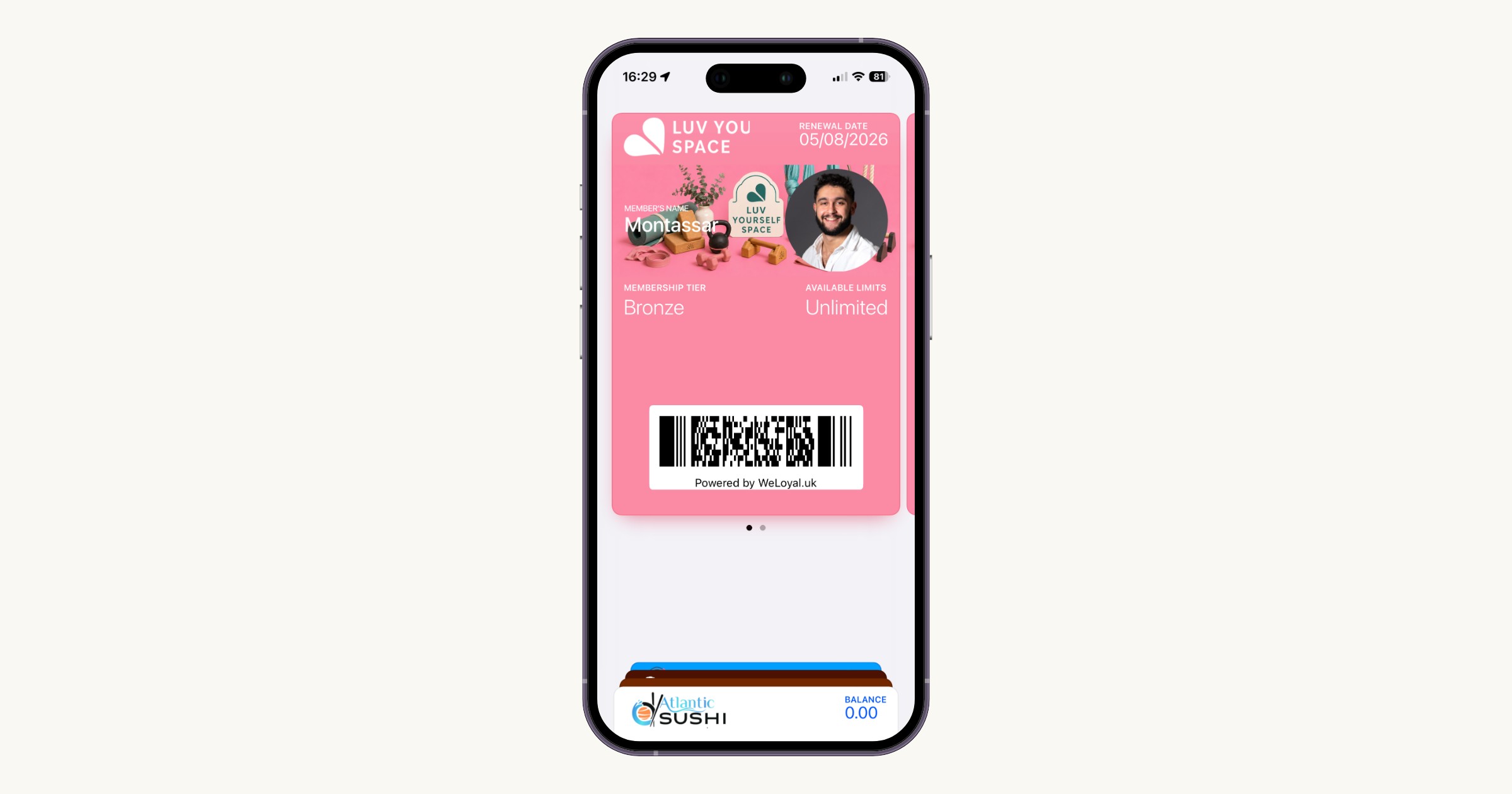
The Membership Card: Turning One-Off Customers Into Predictable Monthly Revenue
WeLoyal membership cards connect to your payment processor to bill customers automatically each month, the way a gym or subscription service does.
How Recurring Membership Billing Works With Stripe, and Why It Costs Less Than You Think
How WeLoyal membership billing works with your own Stripe account: payments go straight from customer to business with no extra platform fee layered on every charge.
Customer Lifetime Value: What It Means and How a Loyalty Program Actually Increases It
What customer lifetime value means, why it matters more than any single visit, and exactly how a digital loyalty program moves that number in the right direction.